OwnShop AI user manual
OwnShop AI answers your customers for you. It works with WhatsApp, Telegram and your website. It runs on your own Windows computer. Customers ask for products, place orders, pick a delivery slot and get an invoice and a receipt. You see every order in your browser.
The screenshots come from one real run on a Windows PC, with a demo shop called Green Leaf Organics.
1. Install
- Download
ownshop-setup-windows-amd64.exe(or-arm64.exe) (about 700 MB; it holds the program and the AI model). - Double-click it.
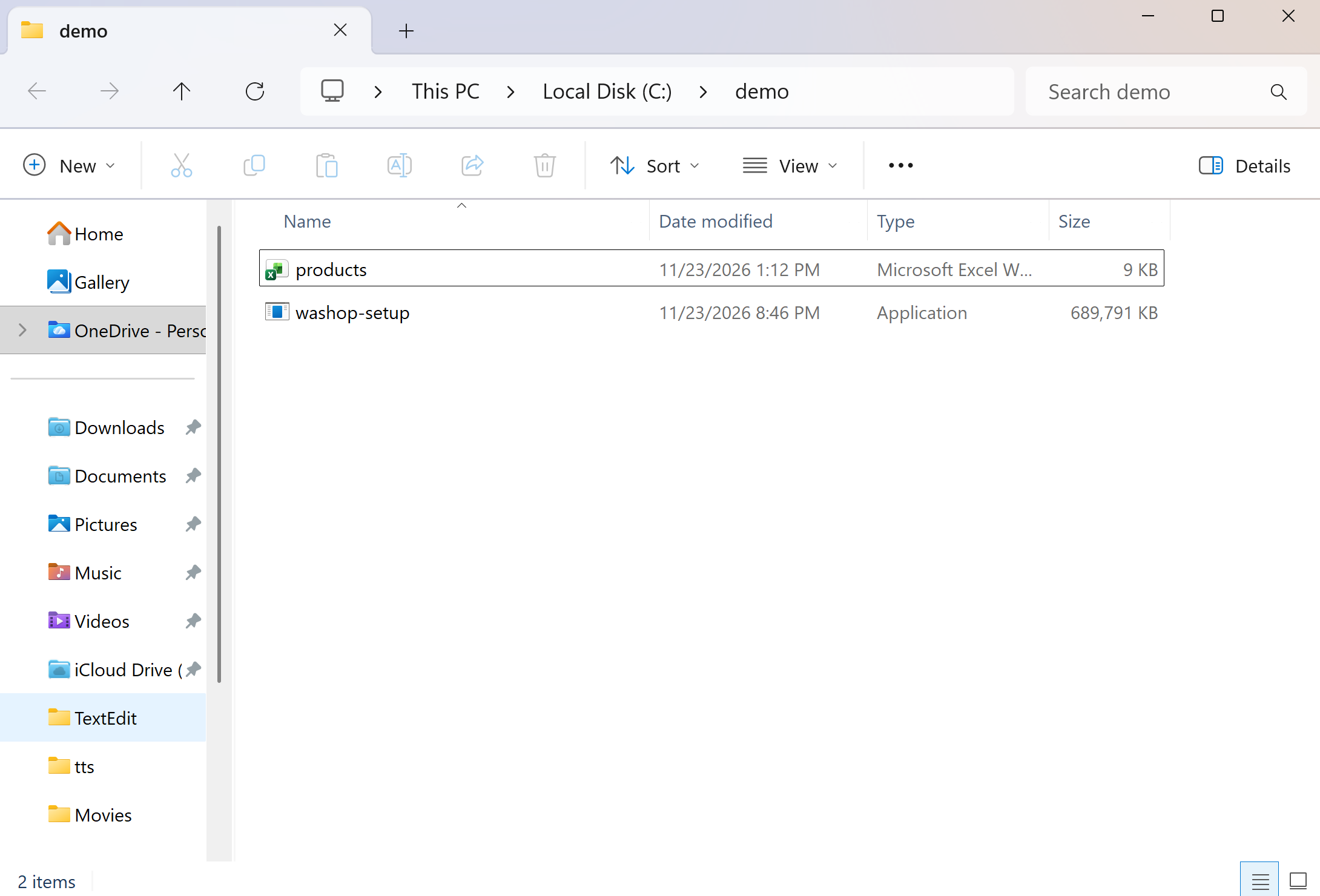
There is no wizard. A black window opens while the files are copied to %LOCALAPPDATA%\ownshop. Then OwnShop AI starts and opens the shop page in your browser at http://127.0.0.1:2007. Leave the black window open: it belongs to the running shop.
The setup also:
- adds OwnShop AI to the Start menu,
- puts an
OwnShop AIshortcut on the desktop that opens the shop page, - makes OwnShop AI start when you log in.
Your shop's data (orders, products file, photos, settings) lives in %APPDATA%\ownshop. Installing again keeps it.
To remove the program, run ownshop-setup.exe /uninstall. Your shop's data stays in %APPDATA%\ownshop.
2. First setup
Setup has four steps. You can go back to any step from the row of buttons at the top.
Step 1: Shop
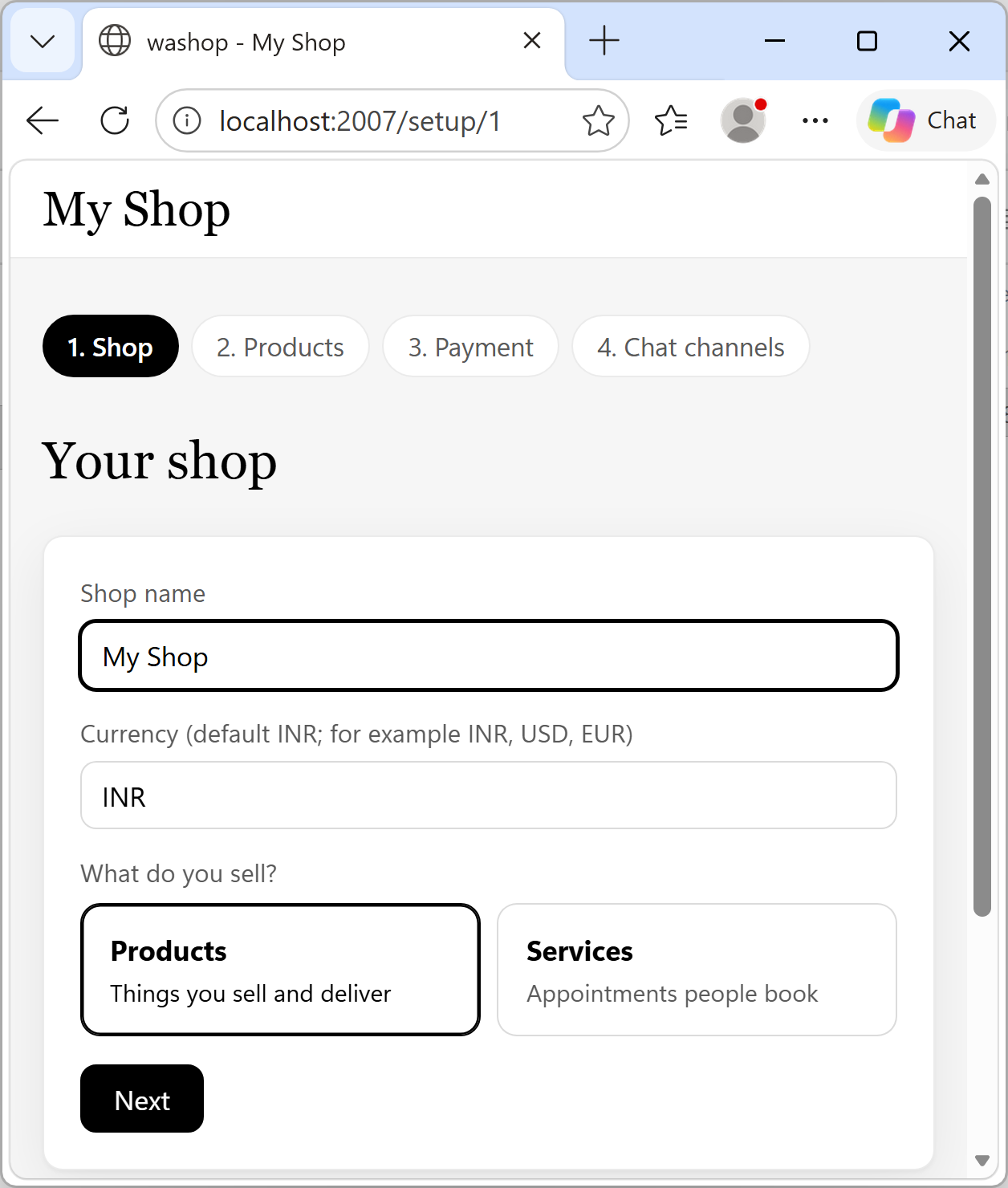
Type your shop name and currency (INR by default). Choose Products (things you sell and deliver) or Services (appointments people book). A shop sells one or the other, not both. Click Next.
Step 2: Products
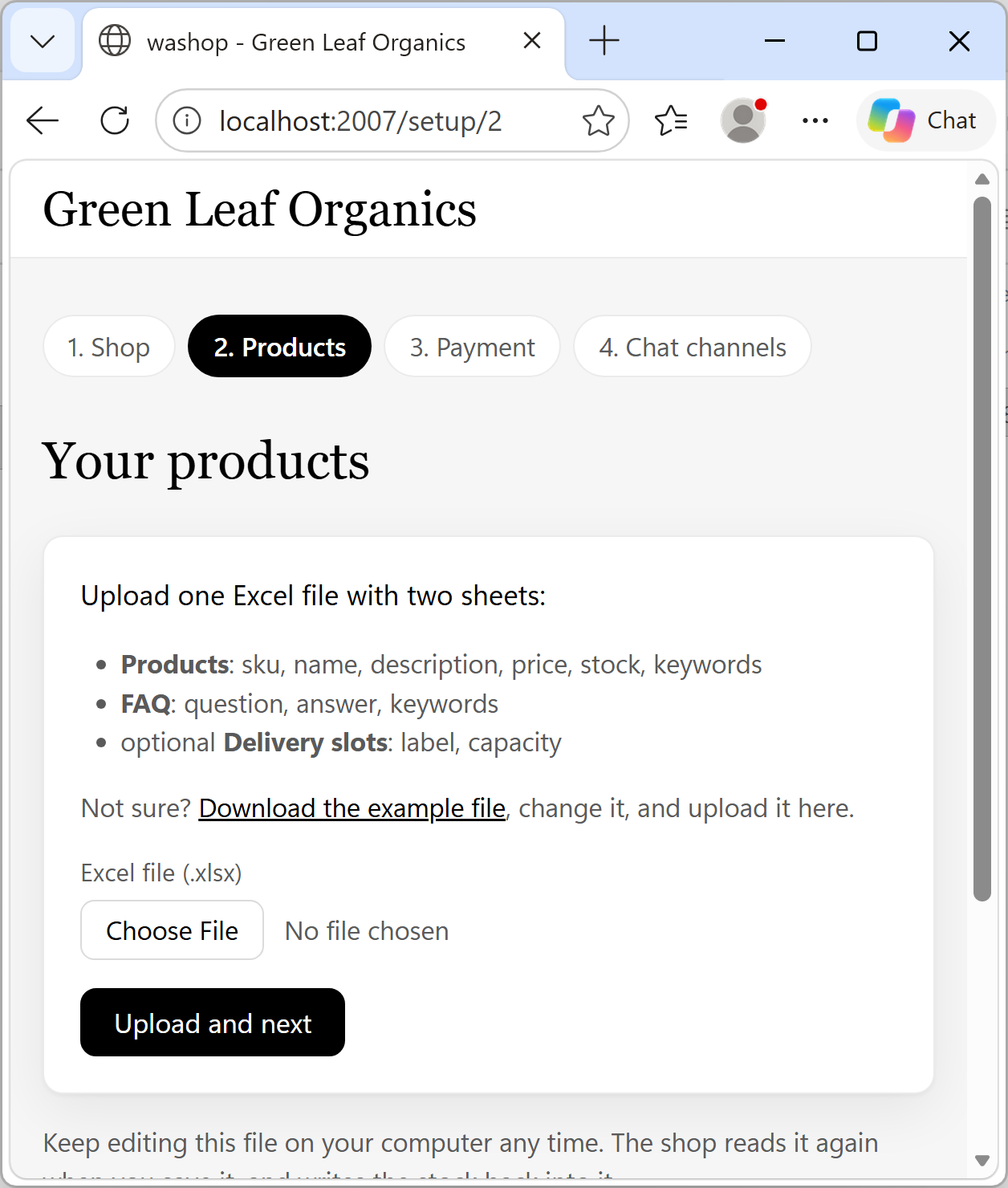
Click Choose File, pick your Excel file and click Upload and next. Not sure what the file looks like? Click Download the example file, change it and upload it. See Products for the columns.
After the upload, the next page says how many products and questions were read and where your file is kept.
Step 3: Payment
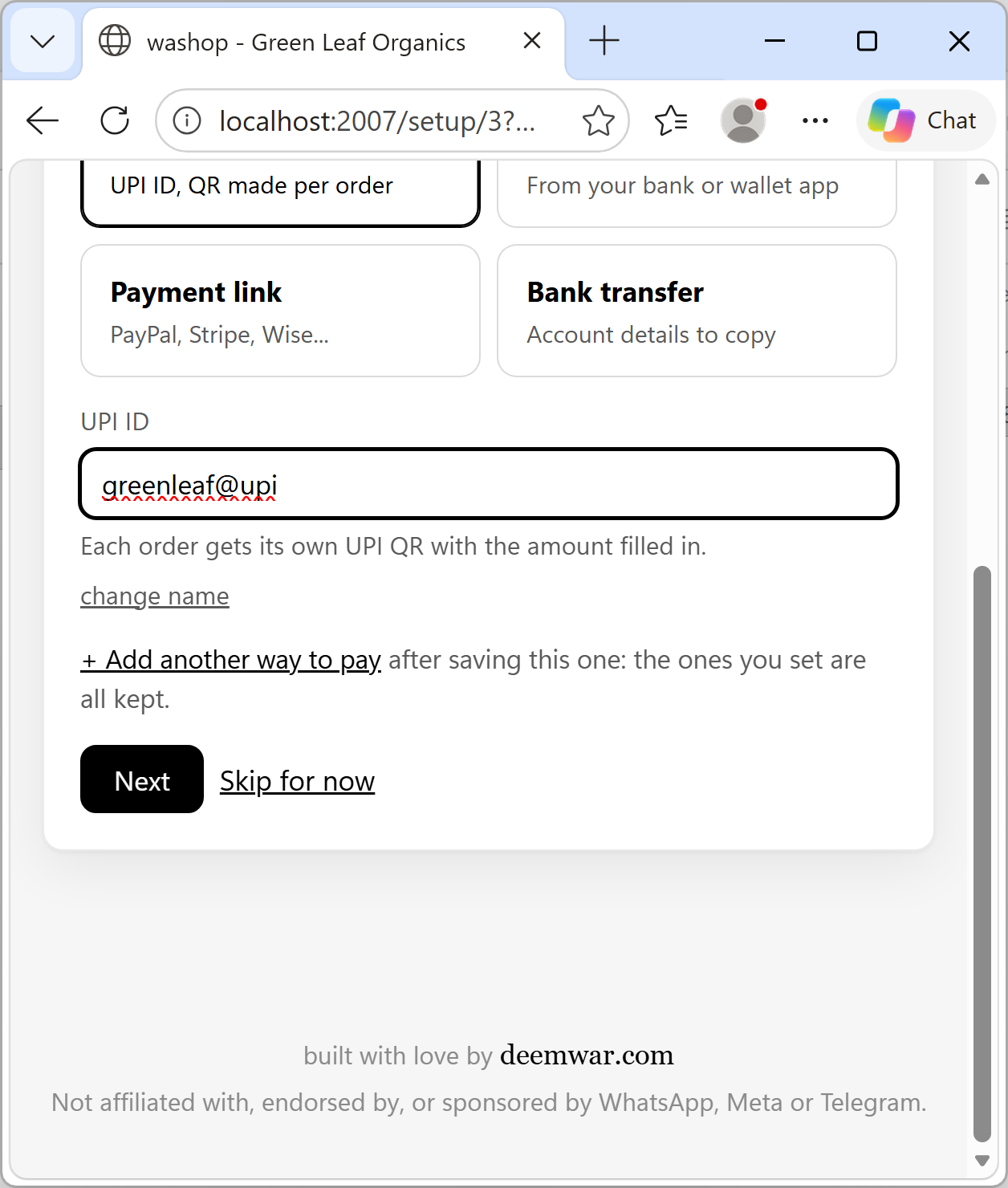
Pick one way to be paid: UPI, QR code image, Payment link or Bank transfer. Only the field for that choice is shown. For UPI, type your UPI ID (the demo uses the made-up greenleaf@upi). Click Next, or Skip for now. You can add more ways to pay later.
Step 4: Chat channels
Here you connect WhatsApp and Telegram. The web chat for test customers is always on. In this run WhatsApp was already linked, so it shows connected.
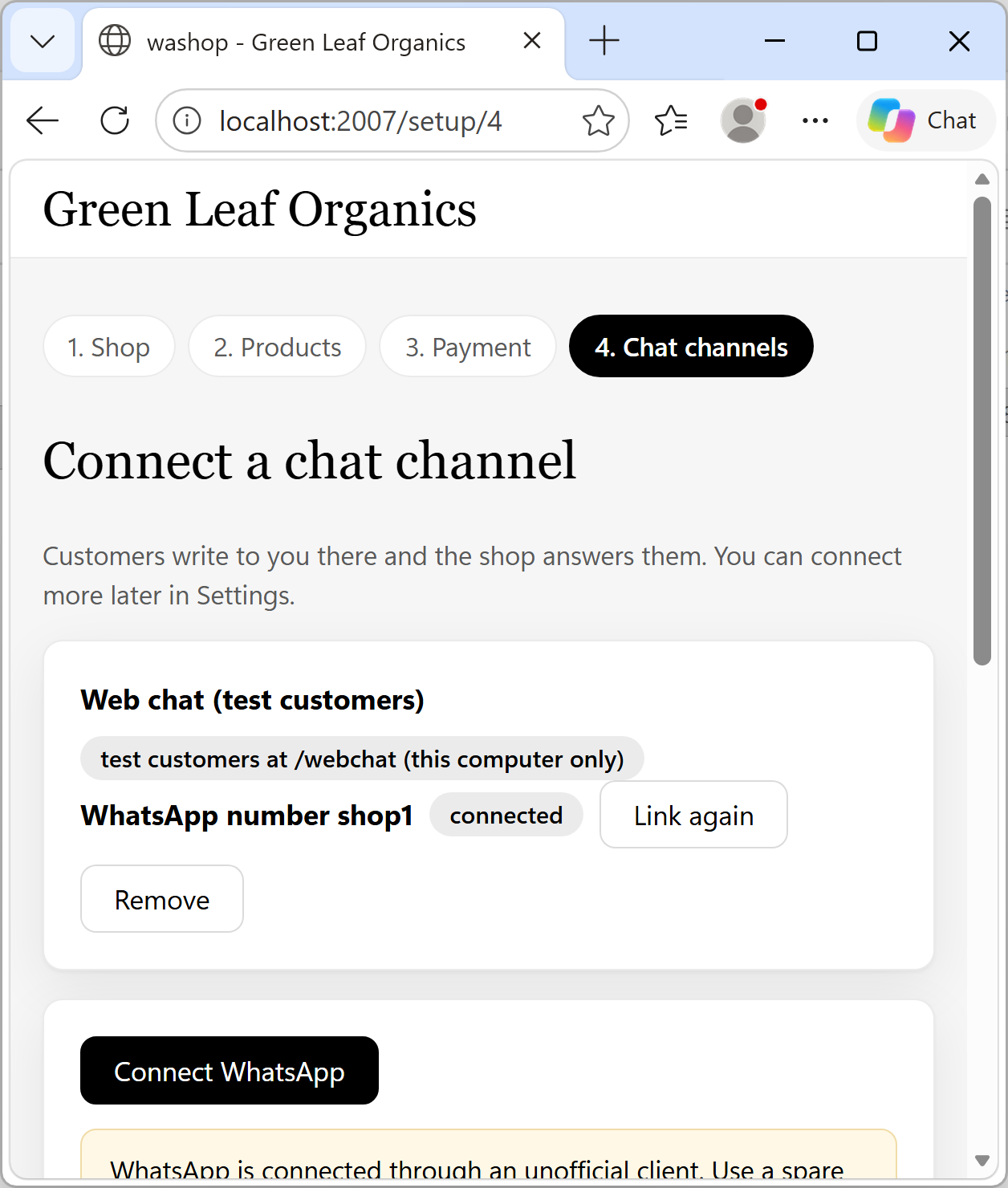
Scroll down and click Finish. The Orders page opens with "Your shop is ready".
3. Connect WhatsApp
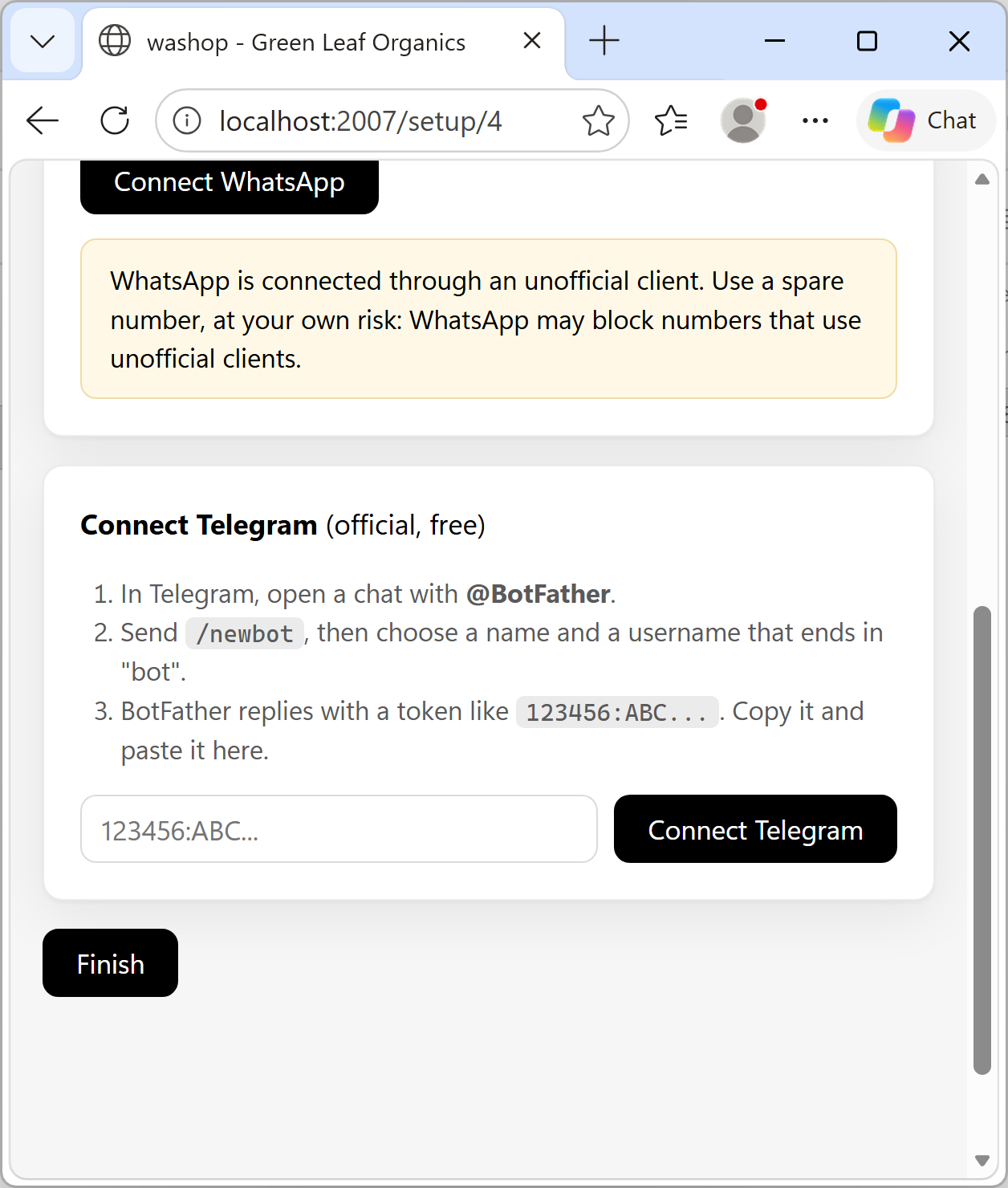
Use a spare WhatsApp number. OwnShop AI links to WhatsApp through an unofficial client, and WhatsApp may block numbers that use unofficial clients. The page shows this warning too.
- In step 4 of setup, or in Settings, click Connect WhatsApp.
- A QR code appears on the page.
- On the phone with the spare number, open WhatsApp, go to Linked devices, tap Link a device and scan the code.
- The page shows "Linked. Finishing setup..." and then connected. The code refreshes by itself if it runs out before you scan it.
Each linked number has Link again and Remove buttons. Removing a number does not touch your orders.
4. Connect Telegram
Telegram is official and free.
- In Telegram, open a chat with
@BotFather. - Send
/newbot, then choose a name and a username that ends inbot. - BotFather replies with a token like
123456:ABC.... Paste it into the box and click Connect Telegram.
5. Products
Your products live in one Excel file with these sheets:
| Sheet | Columns |
|---|---|
| Products | sku, name, description, price, stock, keywords |
| FAQ | question, answer, keywords |
| Delivery slots (optional) | label, capacity |
After the upload, OwnShop AI keeps the file at %APPDATA%\ownshop\products.xlsx. Edit it there and save; the shop reads it again by itself. You can also click I updated my file, or upload a different file with Replace with another file. Stock goes back into the file after each order.
Photos. Put an image named after the product's sku in %APPDATA%\ownshop\images, for example HON-500.png for the product with sku HON-500. Or upload a photo for each row on the Products page. Customers see the photo when they search, when they add the item, and on the invoice.
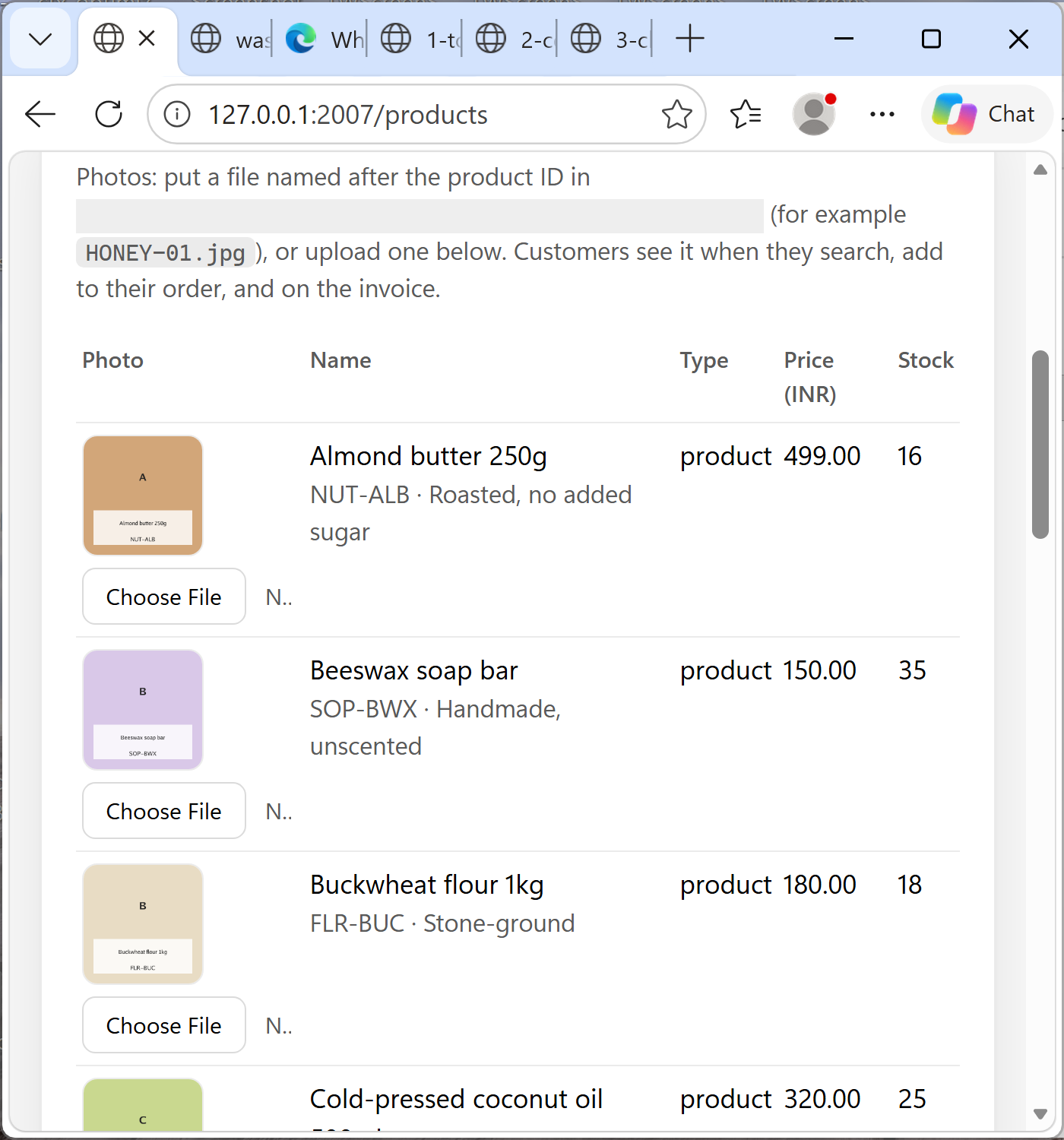
The catalog in chat shows up to 20 items, then tells the customer to ask for an item by name.
6. Shops that sell services
Choose Services in step 1. Instead of a file upload, setup asks what kind of business you run (Clinic / Doctor, Salon / Beauty, Tuition / Classes, Repair / Home service, Consultant, or Other). Each type fills in a usual service, opening hours and slot length. Change anything, then click Looks good, continue. Customers can then write things like book Haircut and pick a day and time. Bookings show on the Calendar page.
7. Payment methods
Setup asks for one way to be paid. In Settings you see every method you set, each with Edit and Remove, and + Add another way to pay.
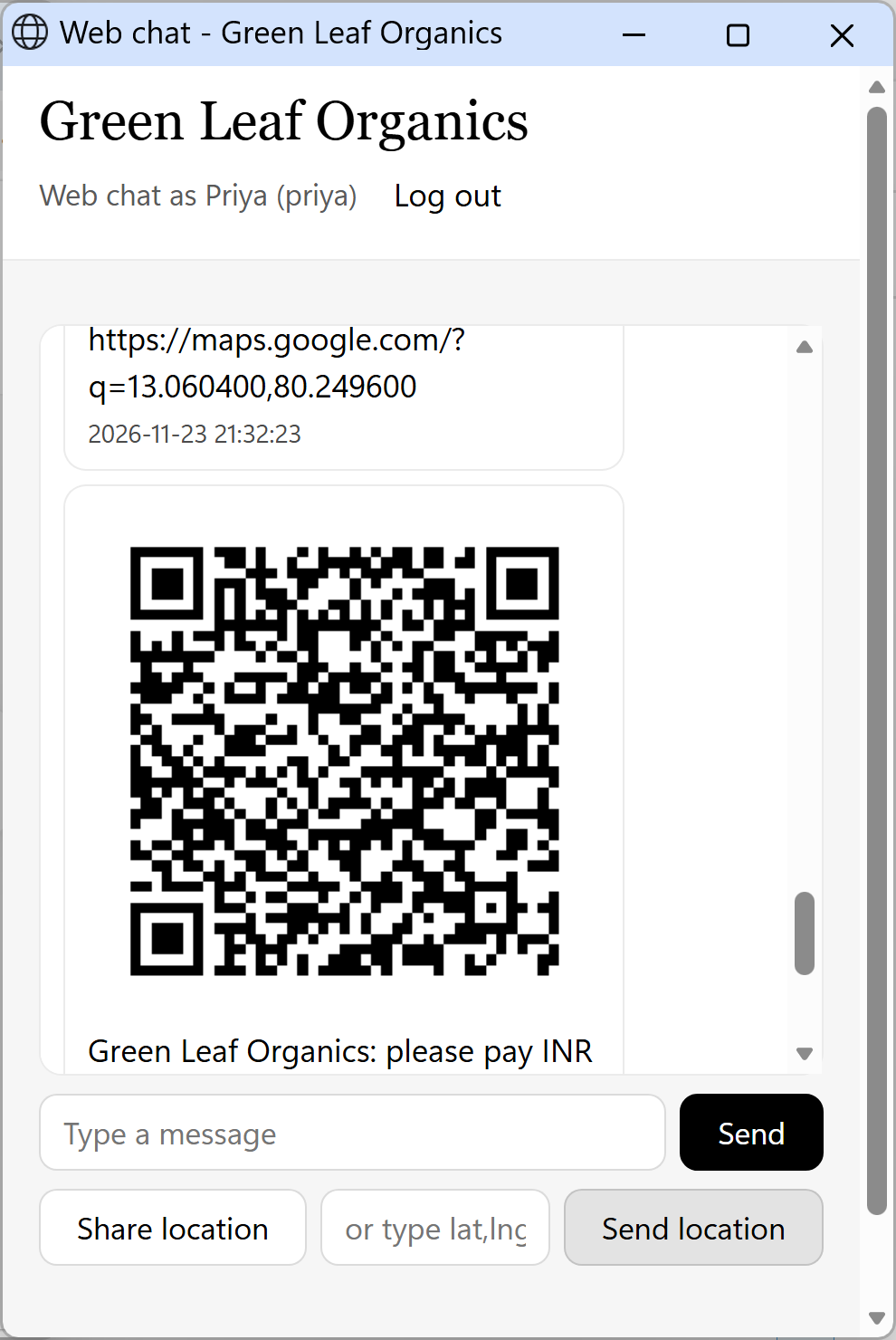
- UPI: each order gets its own UPI QR code with the amount and order number filled in.
- QR code image: upload the QR image from your bank or wallet app.
- Payment link: a PayPal, Stripe, Wise or similar link.
- Bank transfer: account details the customer can copy.
The payment details go to the customer with the total. You click Payment received when the money arrives.
8. Orders and Payment received
Every order appears on the Orders page with the customer, the delivery slot, the items and the total. The same list is kept in %APPDATA%\ownshop\orders.csv (opens in Excel); Download gives you a copy.
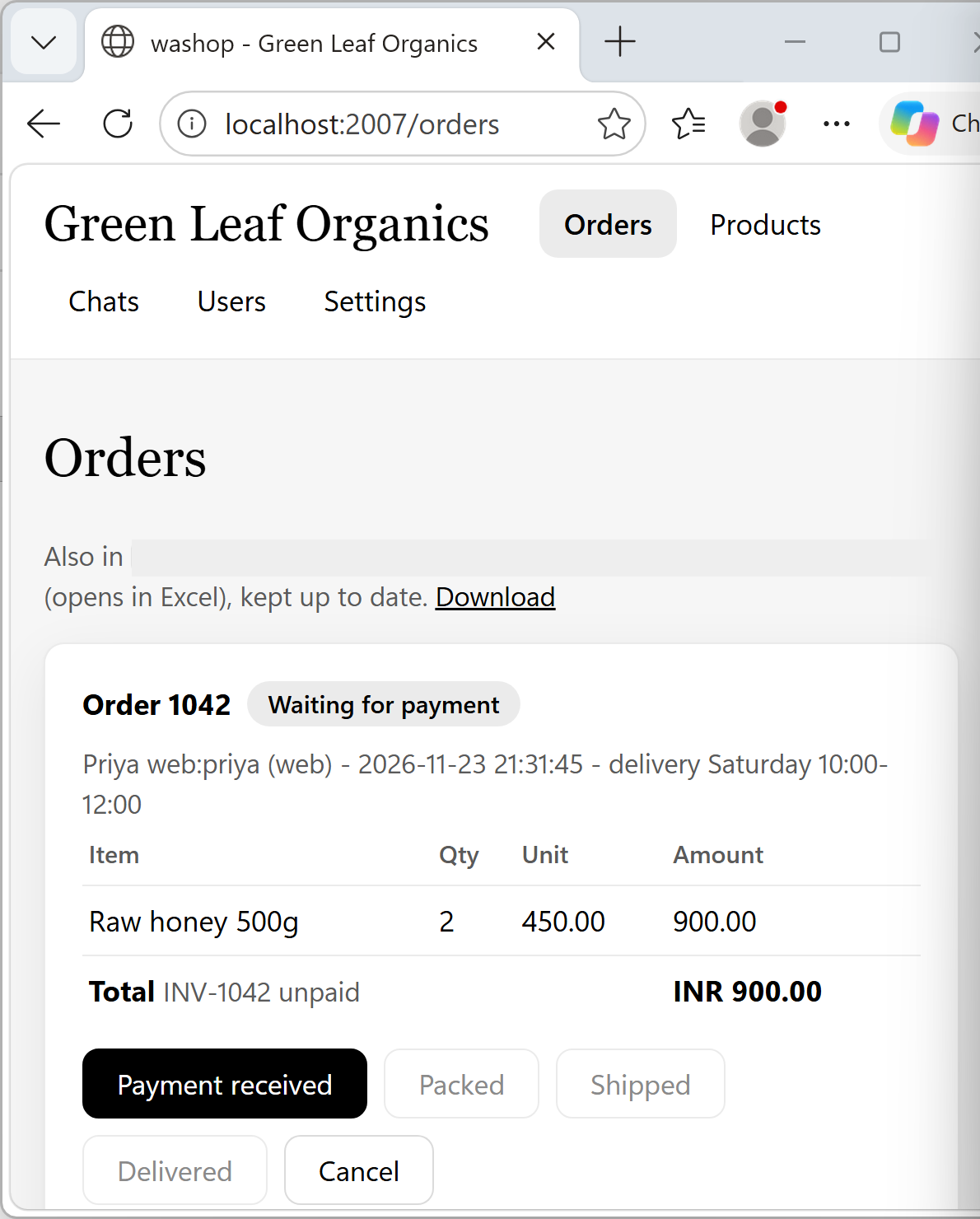
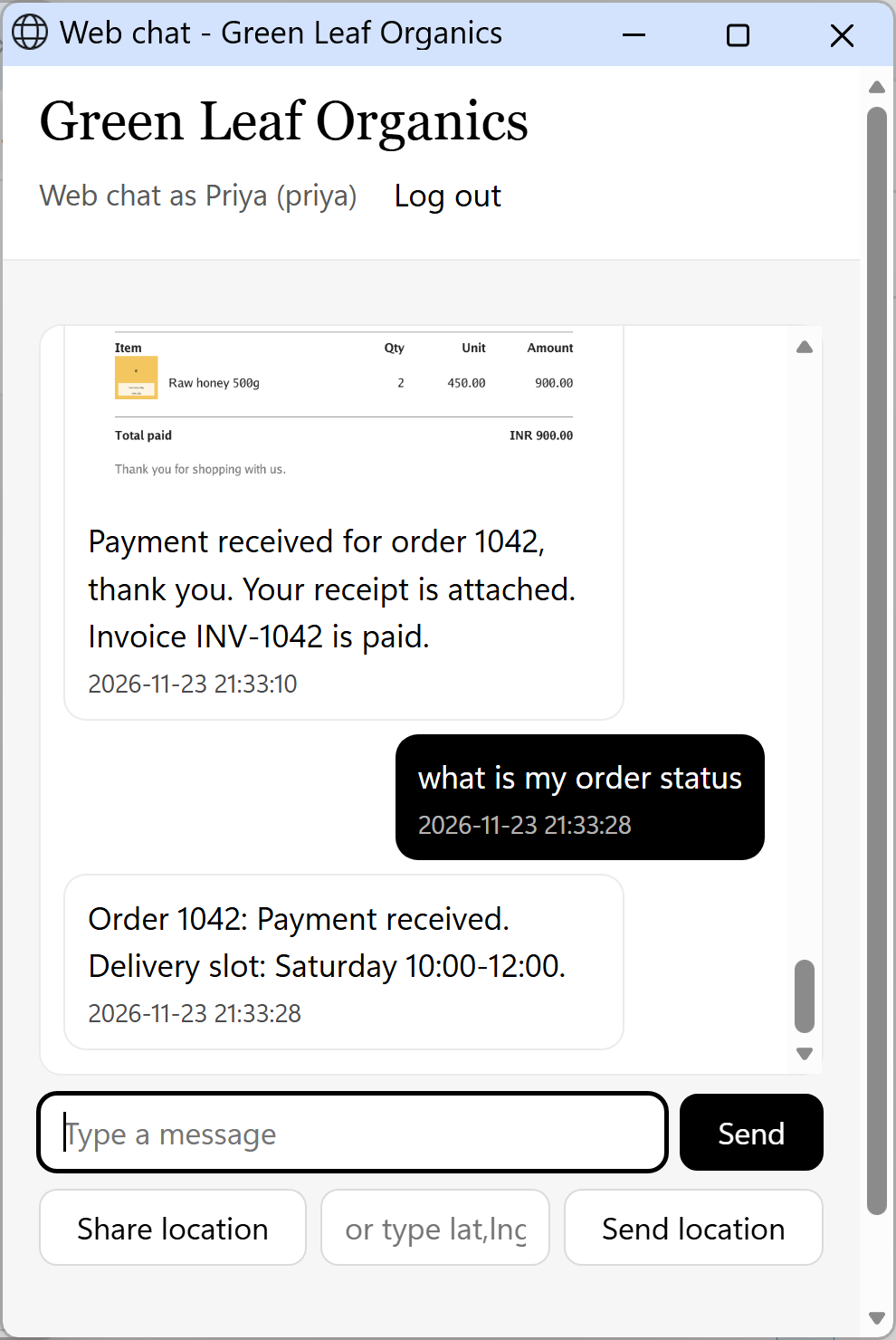
When the money arrives, click Payment received. OwnShop AI marks the invoice paid and sends the customer a receipt with a thank-you message. Then use Packed, Shipped and Delivered as the order moves, or Cancel.
9. Users page
The Users page has two parts.
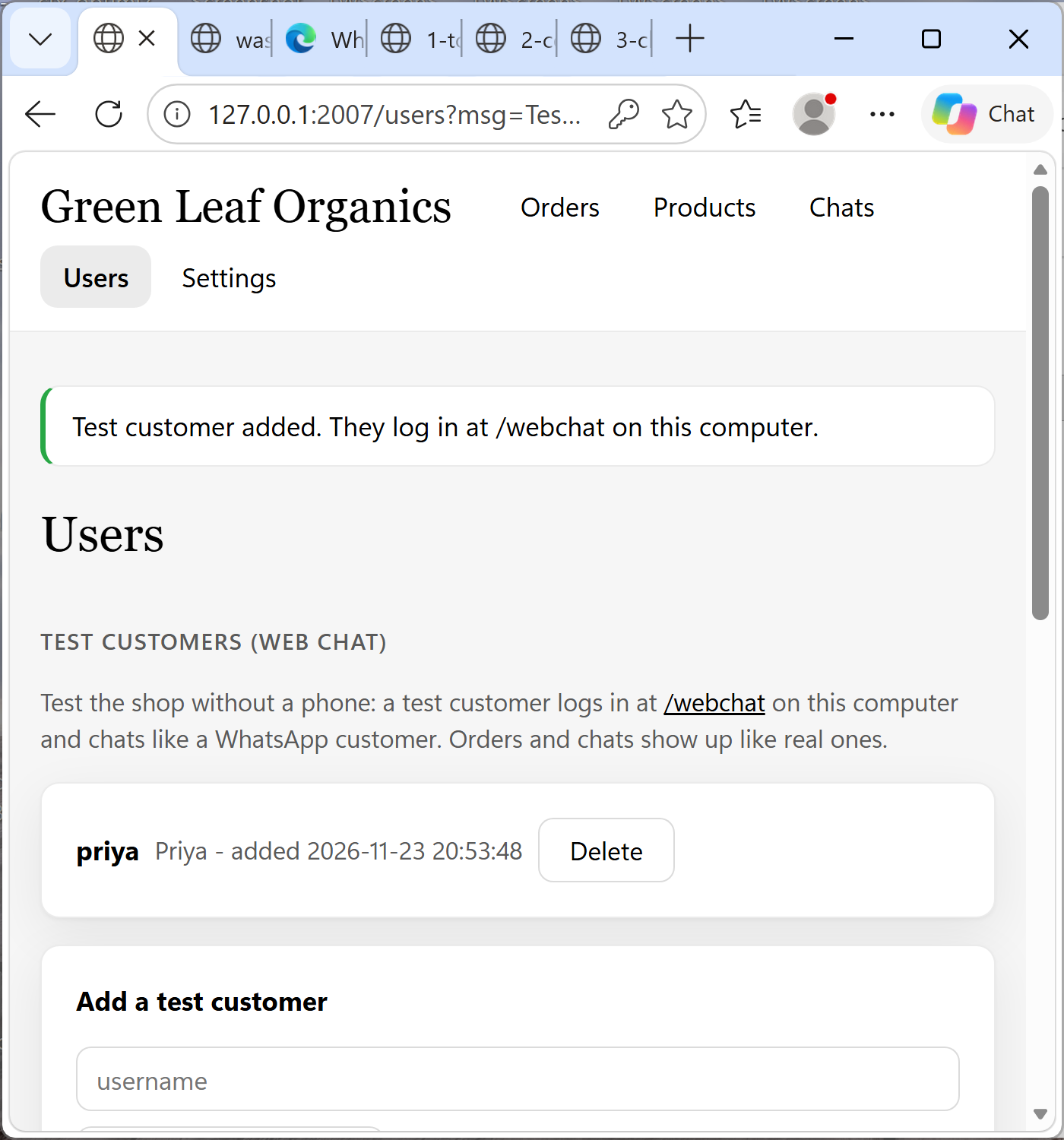
Test customers (web chat). Add a made-up username, password and display name, then click Add. That test customer can log in to the web chat on this computer. Delete removes them.
Customers. Everyone who wrote to the shop, on every channel. Click Block to stop all replies to that customer on every channel. Their past orders stay on the Orders page. Unblock undoes it.
10. Web chat for testing
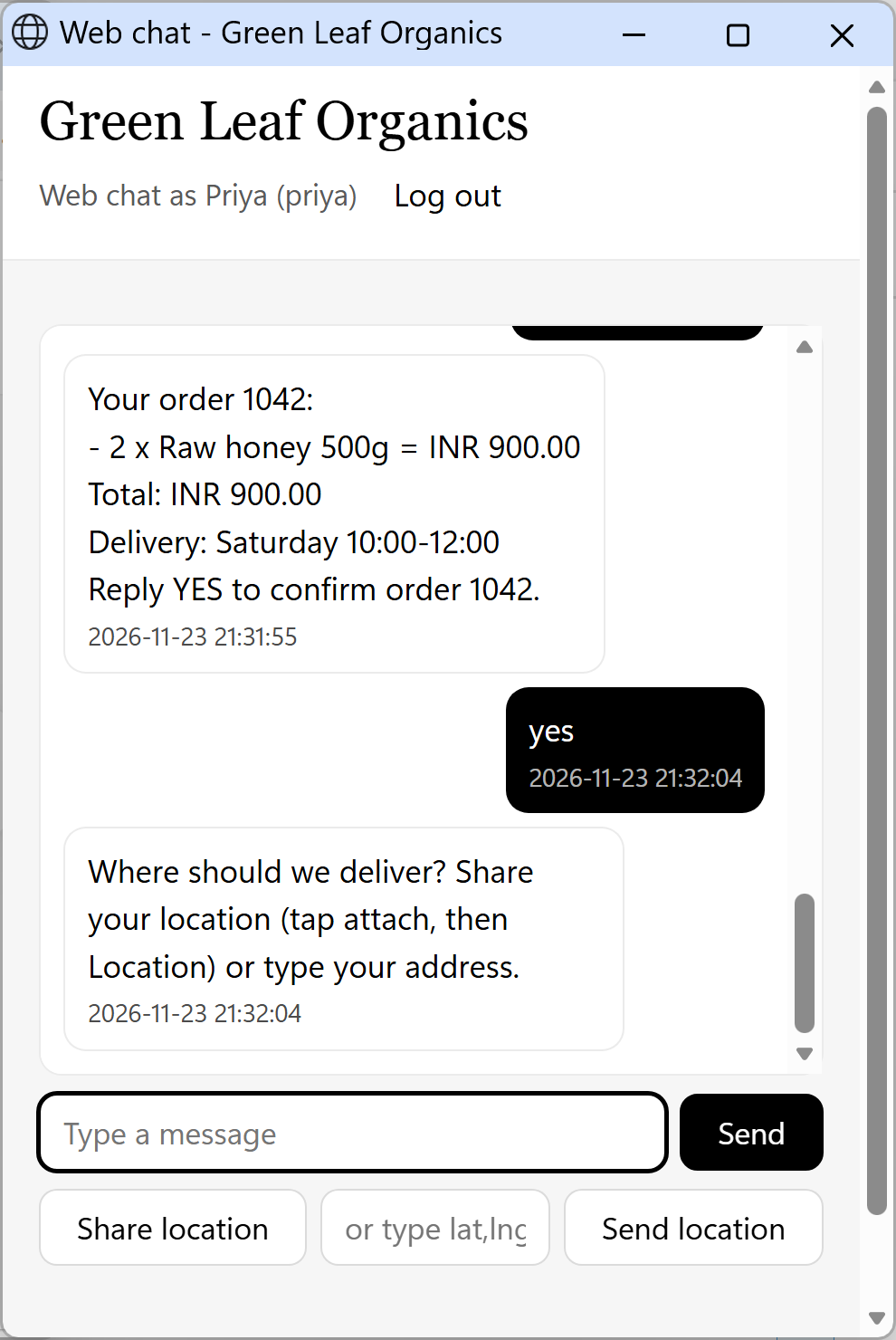
Test the shop without a phone. Open http://127.0.0.1:2007/webchat on the same computer and log in as a test customer. The web chat only works on this computer.
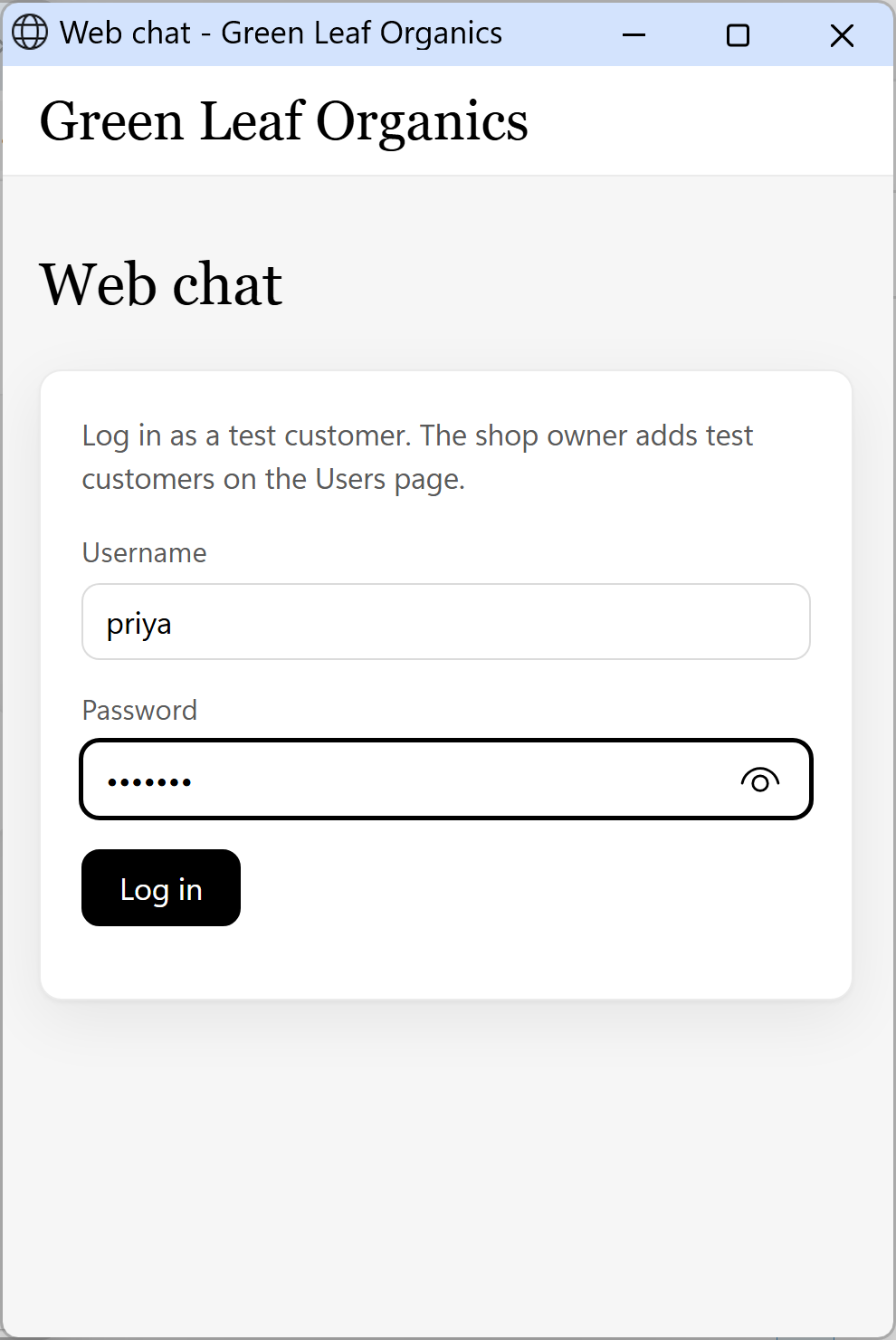
You chat like a WhatsApp customer, with the same bot. Orders and chats show up like real ones.
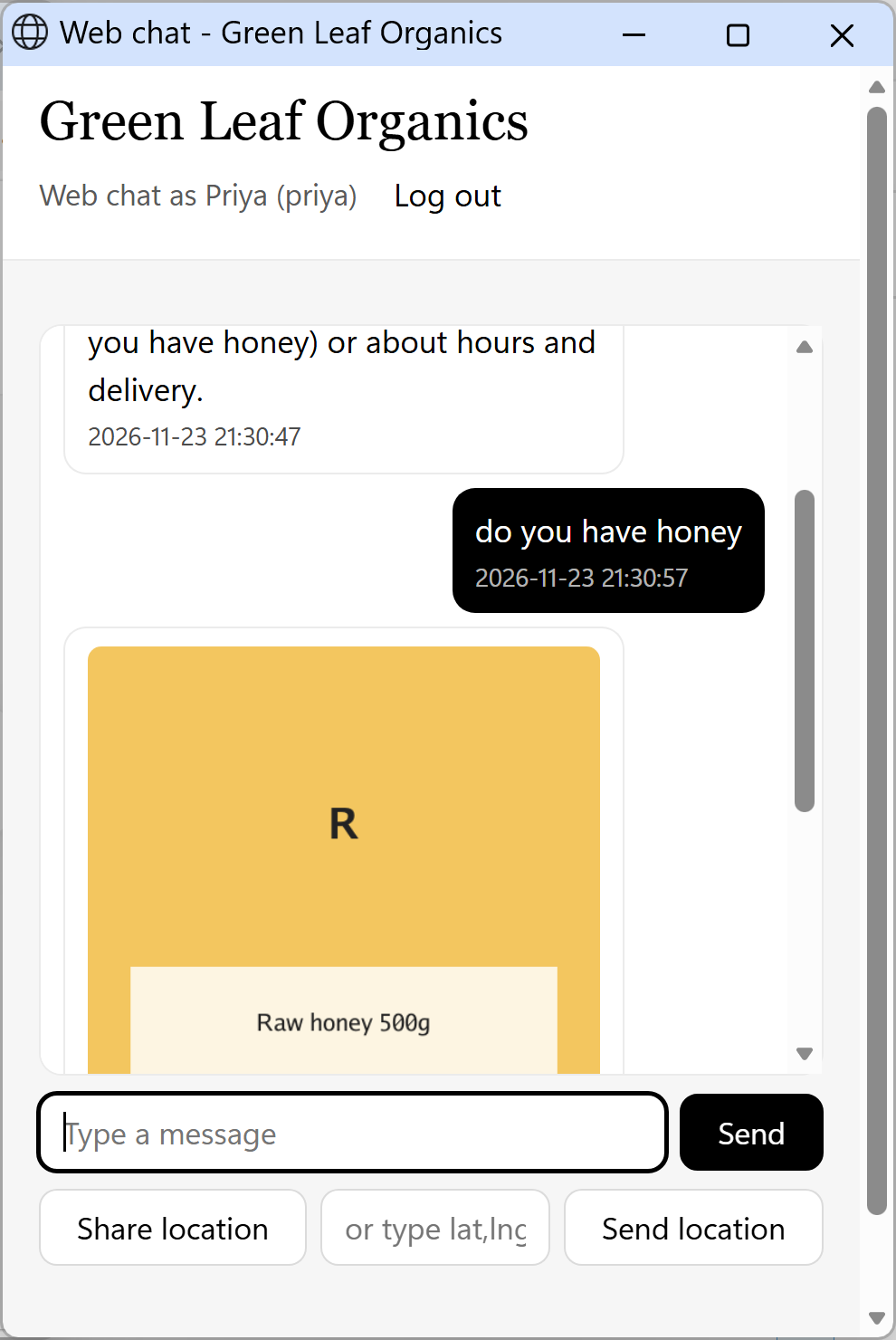
A typical order:
do you have honey(the shop lists matching products with photos)add 2 raw honey- pick a delivery slot, for example
slot 1 yesto confirm the order- share the delivery location: Share location uses the browser's location, or type
lat,lng(for example13.0604,80.2496) and click Send location
11. Test from the command line
The program is at %LOCALAPPDATA%\ownshop\ownshop.exe. The shop's database is %APPDATA%\ownshop\ownshop.db. The webuser and user commands use ownshop.db in the current folder unless you pass --db, so run them like this:
cd /d "%APPDATA%\ownshop"
"%LOCALAPPDATA%\ownshop\ownshop.exe" webuser add priya demo123 --name Priya
"%LOCALAPPDATA%\ownshop\ownshop.exe" webuser list
"%LOCALAPPDATA%\ownshop\ownshop.exe" webuser delete priya
"%LOCALAPPDATA%\ownshop\ownshop.exe" user list
"%LOCALAPPDATA%\ownshop\ownshop.exe" user block web:priya
"%LOCALAPPDATA%\ownshop\ownshop.exe" user unblock web:priya
ownshop say chats as a test customer with the running shop and prints each reply. It stops when the shop has been quiet for 3 seconds, and gives up after 60 seconds. It exits with an error if something fails.
"%LOCALAPPDATA%\ownshop\ownshop.exe" say --user priya --password demo123 "do you have honey"
"%LOCALAPPDATA%\ownshop\ownshop.exe" say --user priya --password demo123 --location 13.0604,80.2496
Add --url http://127.0.0.1:2007 if the shop runs on another address.
12. Start over
Find Start over at the bottom of each page, or in Settings. Both choices save a backup first in %APPDATA%\ownshop\backups. To confirm, type the shop name or CLEAR.
- Clear test data deletes every order, customer, chat message, hand-off, booking and blocked slot, and the invoice and receipt images. Order numbers start again at 1042. Products, photos, settings, payment details, WhatsApp and Telegram are kept.
- Delete this shop and start a new one deletes everything in the shop, including products, photos, the payment QR, settings and test customers, and takes you back to step 1. WhatsApp and Telegram stay connected unless you tick Also disconnect WhatsApp and Telegram.
13. Troubleshooting
The first reply is slow. The AI model loads when the shop starts. The first question that needs the model can take a minute; later replies take a few seconds. Greetings, the catalog, opening hours, prices and similar common questions are answered without the model, so they are instant. A slow computer that is also busy with other heavy work (for example screen recording) is slower still.
Windows SmartScreen says "Windows protected your PC". Click More info, then Run anyway. It appears for programs Windows does not know yet.
The browser did not open. Double-click the OwnShop AI shortcut on the desktop, or open http://127.0.0.1:2007.
A customer gets no reply. Check the Users page: a blocked customer gets no reply on any channel. Check that WhatsApp shows connected in Settings.
I edited the products file and nothing changed. Save the file and wait a few seconds, or click I updated my file on the Products page. If the file has a problem, the Products page says what is wrong.